Wednesday, 15 November 2017

Apple iOS 11.0.2 : Should You Upgrade? (iOS Assistance)

Apple iOS 11 is troubled. While arguably the most ambitious iOS upgrade in generations (and packed with secret features), the launch was tainted by numerous problems and iOS 11.0.1 only added to them. Now Apple has rushed out a second fix, iOS 11.0.2, but should you upgrade or will it only make things worse? 
Here’s everything you need to know…

Who Is iOS 11.0.2 For?
Like all iOS 11 updates, iOS 11.0.2 is compatible with the iPhone 5S or later, iPad mini 2 or later and the 6th generation iPod touch or later.
Compatible devices will be notified about the iOS 11.0.2 update automatically, but if this doesn’t happen you can trigger it manually by going to Settings > General > Software Update. Tip: iOS 11.0.2 is not part of the beta program, so if you are then you will need to unroll your device for it to show up.
iOS update sizes vary depending on the device but, like iOS 11.01, iOS 11.0.2 is typically weighing in at around 300MB.

The Deal Breakers
Yes, iOS 11.0.2 will break jailbroken iPhones, iPads and iPod touch. Steer clear until your jailbreaker of choice notifies you it has made a breakthrough.
Unfortunately, just like iOS 11 and iOS 11.0.1, there are a lot of users reporting problems with a variety of issues. It is too early to write-off this update, but poor battery life, performance lag and overall instability are common complaints. Users have been taking to reddit and social media to vent their frustration.
Of course with hundreds of millions of iPhones, iPads and iPod touches in the world it is impossible to know the full scale of these problems, but I am working on an investigation which will provide greater scale and will update this article once the results are in.
That said I’d advise you steer clear of iOS 11.0.2 for now, unless you have one of the issues detailed in the next section…

Tuesday, 6 June 2017

iPhone 8 Release Date , Features and iOS 11 ( iOS Assistance )


iPhone 8 release date, specs and price, while iOS 11 hints at more powerful camera with AR focus.


YEAH, WE KNOW The iPhone 8 is probably still around five months away but that hasn't stopped speculation and loose-lipped execs spilling details about Apple's next-generation smartphone.
The iPhone 8, apparently set to arrive as the 'iPhone Edition', will be Apple's 10th-anniversary smartphone, and looks set to be the first to debut wireless charging tech, a curved AMOLED display and an unusual vertical dual rear-facing camera. If rumours are to be believed, the so-called 'Edition' will launch alongside the less-impressive iPhone 7S and 7S Plus.
We've rounded up everything we know about the iPhone 8 so far and will update this article as soon as we hear more. 

Release date
The iPhone 8 is likely to be announced in September 2017, marking 10 years since the firm launched its first smartphone. 
However, one report claims that it might not be available to buy until the fourth quarter, noting that the iPhone 8 may be available in limited quantity only. A note by analyst Timothy Arcuri from Cowen and Company has added weight to this and claims that production could be delayed due to issues with its Touch ID sensor.
Another report suggests the iPhone 8 may not arrive until 2018. A research Deutsche Bank, picked up by Business Insider, claims the smartphone won't make it onto shelves this year due to supply chain issues and "technical challenges".

As if just to confuse matters more, Digitimes is reporting that mass production of the iPhone 8 is on schedule and that the smartphone will see a release in October.
PriceIf it's anything like Apple's new MacBooks, next year's iPhone will be more expensive than this year's release, and some are claiming that the highest-spec model will be the first iPhone to cost more than $1,000. 


Rumoured specs- 5.8in 2.5D OLED edge-to-edge display
- New design with an 'all-glass' construction
- Wireless charging support
- Apple A11 chip
- Rear-facing Touch ID sensor
- iOS 11 with improved Siri, P2P payments
- Face-scanning technology
- Vertical dual cameras on rear


Friday, 2 June 2017

How To Unjailbreak your iDevice Without Upgrading / Downgrading iOS ( iOS Assistance )

Do you want to unjailbreak your iOS device, remove Cydia and get back the clean, stock iOS firmware without upgrading to the latest version or restoring the fresh iPSW file?
Here comes a new application, called Cydia Impactor, for your iPhone, iPad and iPod Touch that lets you delete and remove everything on your device including Cydia, picture, contacts, bookmarks, history.
Cydia Impactor is released by Saurik, a very well known personality in the jailbreak community and developer of Cydia store. Please continue reading to know how to get it and use it for your iPhone.


How to Unjailbreak Your iPhone with Cydia Impactor?
Step 1: Fire up Cydia and refresh the Changes.

Step 2: Now search for Cydia Impactor in the store and install it.

Step 3: After successful installation, you’ll see a new icon on the homescreen of your iPad, iPhone. Tap it to launch it.

Step 4: Now tap on “delete all data and unjailbreak” option. Reconfirm by tapping on ‘Delete All’.


Step 5: Sit back, relax and let the app perform its function. You will have to wait for several minutes depending on the data installed on your device.

Step 6: When the process is complete, go through the initial iOS set up process.
Now you have successfully restored your device to clean iOS without upgrading.

Don't forget to SHARE , LIKE OUR FACEBOOK PAGE and SUBSCRIBE .

How to Run and Sign iOS IPA Files With the Use of Cydia Impactor ( iOS Assistance )

You can use Cydia Impactor to intall IPA files to your device. First you need to download IPA file to your PC. Then synchronize file to your mobile to install application
Download Cydia Impactor MAC OS X, Windows, Linux(32 bit)Linux(64 bit)

How to use Cydia Impactor – Step by step process
  • Download Cydia Impcator using above direct download link
  • Drag and Drop IPA file to Cydia Impactor
Step 1: Make it sure you have already installed the latest version of iTunes on your Computer.
Step 2: You’ll also need the IPA file you want to install using Cydia Impactor. Get it and save it on the PC.
Step 3: Connect your device with the PC using the USB cable.
Step 4: Now launch the executable file of Impactor.
Step 5: Once it recognizes your iPhone, drag and drop the downloaded IPA file on to it.

Alternatively,you can also go to Device > Install Package option on Cydia Impactor

Step 6: The application will ask for Apple ID username and Apple ID password which are used to fetch the certificate from the Apple’s servers.
If you are using the Apple ID registered with Apple’s Developer Program, you get the developer certificate which will remain valid for one year. In case you are using a non-developer ID, you get the certificate with 7 days validity only.

Step 7: Please be patient and let Cydia Impactor perform different tasks to sign and install the IPA file.

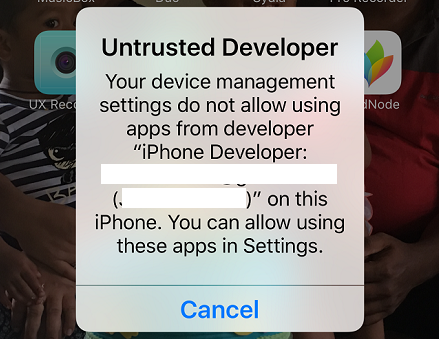
Step 8: Once you see the “Complete” message on it, wake up your iPhone and go to “Settings > General > Device Management”.


Step 9: Open the just installed profile, and trust the developer.


Then your installed app will be verified.


That’s all. Now you can launch the side-loaded application from the iPhone’s home screen.

Don't forget to SHARE , LIKE OUR FACEBOOK PAGE and SUBSCRIBE .

Thursday, 18 May 2017

iOS 10.3.1/10.3 Jailbreak ( iOS Assistance )

iOS 10.3.1/10.3 Jailbreak.

zJailbreak is the only Jailbreak solution for iOS 10.3 and 10.3.1.
You can install application using zJailbreak to your device.
It allows you to install Jailbreak apps to the iOS 10.3/10.3.1 iPhones, iPads, and iPods.

How to install zJailbreak
zJailbreak is a non-rooted app which can install great Jailbreak apps for iOS 10.3.1/10.3 version. We can assume that zJailbreak app will be the next generation of the Jailbreaking method. More info about the zJailbreak.
Currently, zJailbreak is the only hacking method for iOS 10.3.1/10.3. You can install a Cydia lite version (Not the full functional Cydia) with zJailbreak.

STEP 1 :   Visit this page from your iOS 10.3.1/10.3 iPhone, iPod touch or iPad

STEP 2 : Tap the Install zJailbreak button

STEP 3 : Tap the next, You must enter your device passcode. 


zJailbreak compatible devices :
Phone 5s /iPhone 6 / iPhone 6 Plus / iPhone

6s Plus / iPhone 6s / iPhone SE

iPod Touch 6G

iPad Mini 2 / iPad Mini 3

iPad Air /iPad Air 2 /iPad Pro /


Jailbreak app installation guide for iOS 10.3.1 / 10.3 
Anzhuang is not a iOS jailbreak tool, and you can use it for install jailbreak apps as an online. Please follow below Anzhuang step guide to install most popular jailbreak apps.
  • Open zJailbreak app manager Install zJailbreak now if you have not installed it  
  • Find Anzhuang app and install it 

  •  Now select iOS 10.3.2 jailbreak application and click the generate code and copy the code

  • Now open Anzhuang and paste the code
  • Now tap the install button


Please SHARE , LIKE and feel free to contact AUTHOR for assistance

Tuesday, 16 May 2017

iOS 10.3.2 Jailbreak ( iOS Assistance )

Apple has now released iOS 10.3.2 download, a small release that fixes bugs that showed up in iOS 10.3.1 and helps to improve performance. It also contains a number of security fixes that have got the jailbreak community concerned that there won’t be an iOS 10.3.2 jailbreak for iPhone. The good news is, there is one and it is available for download now. With iOS 11 the next big thing, it is likely that Apple will slow down on iOS 10 releases now and concentrate on just maintaining it. Here’s how to jailbreak iOS 10.3.2.

How to Jailbreak iOS 10.3.2 : Safari Browser

Don’t worry about any other browser because Safari is the only one that will work :
Open Safari browser and go to downloadpangu.org


 2. Our mobile web page will load so tap on the UP arrow , top or bottom of the page.
3, When the new options load on the screen, select and tap on Add to Home Screen 

4. You are now going to be asked to give the app icon a name so type Pangu into the box . Tap the Add button and close Safari


5. Look on your Home screen and you will see the Pangu icon

iOS 10.3.2, Updates Now Available: Here's What's New ( iOS Assistance )

iOS 10.3.2 update

The iOS 10.3.2 update primarily focuses on bug fixes and security patches, and the release notes vaguely says, "includes bug fixes and improves the security of your iPhone or iPad." The security update page says that bugs in Safari, notifications, CoreAudio , AVEVideoEncoder, iBooks, WebKit-related fixes, and more have been tackled with in this update. If security is your priority, we recommend you to download the update as soon as possible.
This update will be available for iPhone 5 and later devices, iPad fourth generation and later devices, and iPod touch 6th generation and later devices. Head over to Settings > General > Software Update to download and install the new update. Alternatively, you can even update via iTunes. First install iTunes, and then connect your iOS device to your PC or Mac. In iTunes select your device's icon on the top bar, click the Summary tab and then click Check for update. Now, click Download and update. At this point, you should follow the simple on-screen instructions to install iOS 10.3.2. Ensure that you have at least 50 percent battery backup, and a strong Wi-Fi connection when attempting to update. Don't forget to backup your iOS device before you download and install the update.

This update:
  • Fixes an issue where audio may stutter when played through USB headphones
  • Enhances compatibility of the App Store with future software updates
  • Adds support for media-free installation of Windows 10 Creator Update using Boot Camp


As a reminder, iOS 11 is just around the corner, ready for an announcement at Apple's WWDC conference which starts June 5. Some rumors of little credibility but big hope suggest iCloud integration and more contextual learning capabilities for Siri, as well as group FaceTime calls and design tweaks as possible new additions. Apple doesn't seem to be running out of ideas anytime soon!

Things to Know About the iOS 10.3 Update ( iOS Assistance )

Things to Know About the iOS 10.3 Update.

Apple recently released its iOS 10.3 update and today we want to take a close look at everything we know, right now, about the the iOS 10.3 update and its release for iPhone, iPad and iPod touch.
 Today we want to take an updated look at the most important things to know about the iOS 10.3 update and its release.
 
We’ve downloaded the iOS 10.3 update on the iPhone 7, iPhone 6s, iPhone 6, and iPhone 5.
The iOS 10.3 update is massive, over 600MB for the iPhone 7, and the installation process took a lot longer than usual due in part to Apple’s new APFS file system.


 Battery life is currently holding up on all four phones. We haven’t experienced any weird drain when in use or standby. Wi-Fi, Bluetooth and cellular data are also stable.
We’ve noticed some improvements to the iPhone 5’s boot speed and its UI. The user interface feels faster and more fluid than the previous versions of iOS 10.
As of right now, iOS 10.3 is treating these three devices well and it’s recommended if you’re interested in iOS 10.3’s features, protecting your device from potential harm, or if you’re suffering from an unfixable iOS issue.


iOS 10.3 Problems

iOS 10.3 users are complaining about a wide range of issues including weird battery drain, issues with Bluetooth and Wi-Fi, lag, random reboots, and issues with third-party apps.
As of right now, these issues are isolated. They’re also extremely common after a major iOS update release.
Most of these iOS 10.3 problems can be solved from the comfort of a computer chair at work or your home.
If you’re seeing an issue after downloading iOS 10.3,take a look at the step below .


Downgrade & iOS 10.3.1

If you decide to download the iOS 10.3 update know that there is no longer a way to drop down to another official version of iOS 10.
If iOS 10.3 is causing problems for you you’re stuck until Apple rolls out a new version of iOS 10.
Apple’s no longer signing off on iOS 10.2.1 which means you can’t drop down to it if you’re unhappy with the iOS 10.3 update’s performance on your iPhone or iPad. Unfortunately, you can’t drop down to anything older than iOS 10.2.1 either.
 follow these steps here to modify / change your iOS 
Or click here : ipsw.me
Also note that you can now “upgrade” to iOS 10.3.1.


Tuesday, 2 May 2017

How to install iPhone paid apps for free ( iOS Assistance )

There are several ways of getting this done i.e using iFunbox , AppCake e.t.c
In this post i'll be assisting you with the most reliable for already jailbroken devices which is the AppCake.

Appcake is an application that allows users with jailbroken iOS devices to download paid apps free of charge so they can try them before buying them. iOS users who used Cydia to jailbreak their devices can install Appcake directly from the Cydia application.

1.  Launch the Cydia app from the Home screen of your iOS device.  The application may take up to several minutes to load if there are new updates available.  


2.  Tap on “Sources" at the bottom of the Cydia home screen 
 

3. Add the sources   Go to Sources tab in Cydia, tap Edit and then Add.

 A dialogue box will display on-screen.


4.  Always use Official Repo. Put the repo in the box: “cydia.iphonecake.com” into the dialogue box and tap on “Add Source.”


5.  Confirm to Add. Tap on the "Add Anyway", to ignore the warning about piracy Your iOS device will take a few moments to download the resources needed to run Appcake.


6.  Finish Adding. You should see a new source added, called: AppCake.


 7.  Find AppCake  Go into the source, then tap All Packages, you should see AppCake . Tap on “AppCake".(If your device is iOS7)

  • If your device is iOS4, tap "AppCake(for iOS4.2&lower).
  • If your device is iOS6, tap "AppCake for iOS6".


8.  Install AppCake. Choose the right AppCake for you, then tap 'Install',then on “Confirm” located at the top right corner of your session. Appcake will begin the installation process.

  • If you are using iOS 7, you will also be required to install a patch called “AppSync Patch iOS 7.x” in order for Appcake to run efficiently on your device. This patch can be installed directly from the Sources screen.


9.  Tap on “Restart Springboard” when the command displays on-screen to successfully complete the installation process for Appcake

  • When installing Appcake, some users may see an application called “AppSync” being downloaded at the same time. This app is required for use with Appcake on iOS devices that had never used Installous prior to downloading Appcake.
 

10.  Appcake will now display on your Home screen and be ready for use.


Saturday, 11 March 2017

How to jailbreak an iPhone or iPad running iOS 10.2 ( iOS Assistance )

How to jailbreak an iPhone or iPad running iOS 10.2

How to jailbreak an iOS 7 iPhone
So, if you want to jailbreak your iPhone or iPad running iOS 10.2, you’ll have to use the recently released Yalu jailbreak, however it’s not all smooth sailing. Unlike with other jailbreaks, the developer has flagged the Yalu jailbreak as being an alpha build, meaning there might be issues on your device. Proceed if you desire, or you can hold off for now and wait for a more stable build to be released in the coming weeks.
Also, the jailbreak only supports certain devices at the time of writing:
  • iPhone 6s
  • iPhone 6s Plus
  • iPad Pro
  • iPhone SE
Unfortunately, those with an iPhone 7 or 7 Plus are out of luck for now, although support should come in the following days or weeks, so we’d avoid updating to iOS 10.2.1 if you’re planning to jailbreak. For those with an iPhone 6s, 6s Plus, iPad Pro or iPhone SE, follow these instructions to jailbreak your iOS device running iOS 10.2.
1) The first step is to download the tools required – you can download the Yalu Jailbreak IPA for iOS 10.2 from here (named yalu102_alpha.ipa at the time of writing), and you can grab the appropriate version of Cydia Impactor (Mac, Windows, Linux) from here.
2) Unzip the Cydia Impactor file you downloaded above, and run it.
3) Once Cydia Impactor is running, connect the iOS device you want to jailbreak to your Mac/PC using the supplied Lightning cable. It should be automatically recognised by the app.
4) Once your iOS device is connected, drag yalu102_alpha.ipa (the Yalu jailbreak IPA) into the Cydia Impactor app, click the ‘Start’ button and click ‘OK’ when an Apple Developer Warning appears.
5) The next step is to ‘sign’ the app using an Apple ID – the developers assure users that the information is used only for signing the app and nothing more, but those who want to be more secure can opt for a secondary Apple ID. Anyway, input your Apple ID email address, click ‘OK’, then input your Apple ID password and click ‘OK’.
6) Cydia Impactor should then automatically prepare everything based on your input, and sign the IPA file. If all goes well, the Yalu app should then be installed on your iOS device.
7) On your iOS device, open the Settings menu and head to General > Profiles & Device Management. Tap the profile named as the Apple ID you signed in using the Cydia Impactor app and make sure you establish it as a trusted developer by tapping Trust.
8) Open the newly installed Yalu app (labelled yalu102) on your iOS device and press the Go button to initiate the jailbreak.
9) Wait while the jailbreak payload is injected into the device – this may take some time, and it’s important that you don’t touch your iOS device during this process. The screen will go white, then will reboot once the jailbreak has been completed.
10) Once the device has restarted, you should see Cydia appear on your Home screen – open the app and begin installing your favourite jailbreak apps and tweaks.
As the jailbreak is only semi-tethered at the time of writing, you’ll have to re-run the Yalu app every time you restart your device to re-jailbreak it. If a fully untethered jailbreak is released in future, we’ll update this section so make sure you keep checking back soon.
Read on to find out how to jailbreak an iOS device running iOS 9.